Connect your AI assistant directly to Drip to inject it with account knowledge automatically. That means you do not have to dig through your account to find the data AI needs to answer any of your insight questions.
To do this, Drip has established an MCP (Model Context Protocol), a secure bridge that connects AI models directly to app data.
Now, using the Drip MCP, your AI tool can both read and operate your account while eliminating your need to manually execute any exports or gather insights across multiple features and reports. Simply describe what you need the AI assistant to do and watch it work against live account data: analyzing performance, inspecting and building segments, enrolling subscribers in workflows, updating records, and more.
Set up the Drip MCP Connector
Please note: During setup, you can enable Read-only access, Write-only access, or both. For more on what Read vs Write tools are, check out our MCP Calls article.
- Make sure you are already logged into your Drip Account.
- This will help with the setup process.
- Navigate to your AI client and create a new custom connector
- Use the following URL: https://api.getdrip.com/mcp in the configuration.
- No API keys needed
- Once connected, you will be prompted with a guided OAuth login and account picker. Here you can securely authenticate one specific account or connect all associated accounts to use with the MCP.
- Here you can also set up Read and/or Write access permissions:
- You’re all set! Try out some queries in your AI tool, such as:
- “What Drip accounts are you connected to?”
- ”Try out the Drip MCP connector and tell me what you can about my account.”
Example Set Up with Claude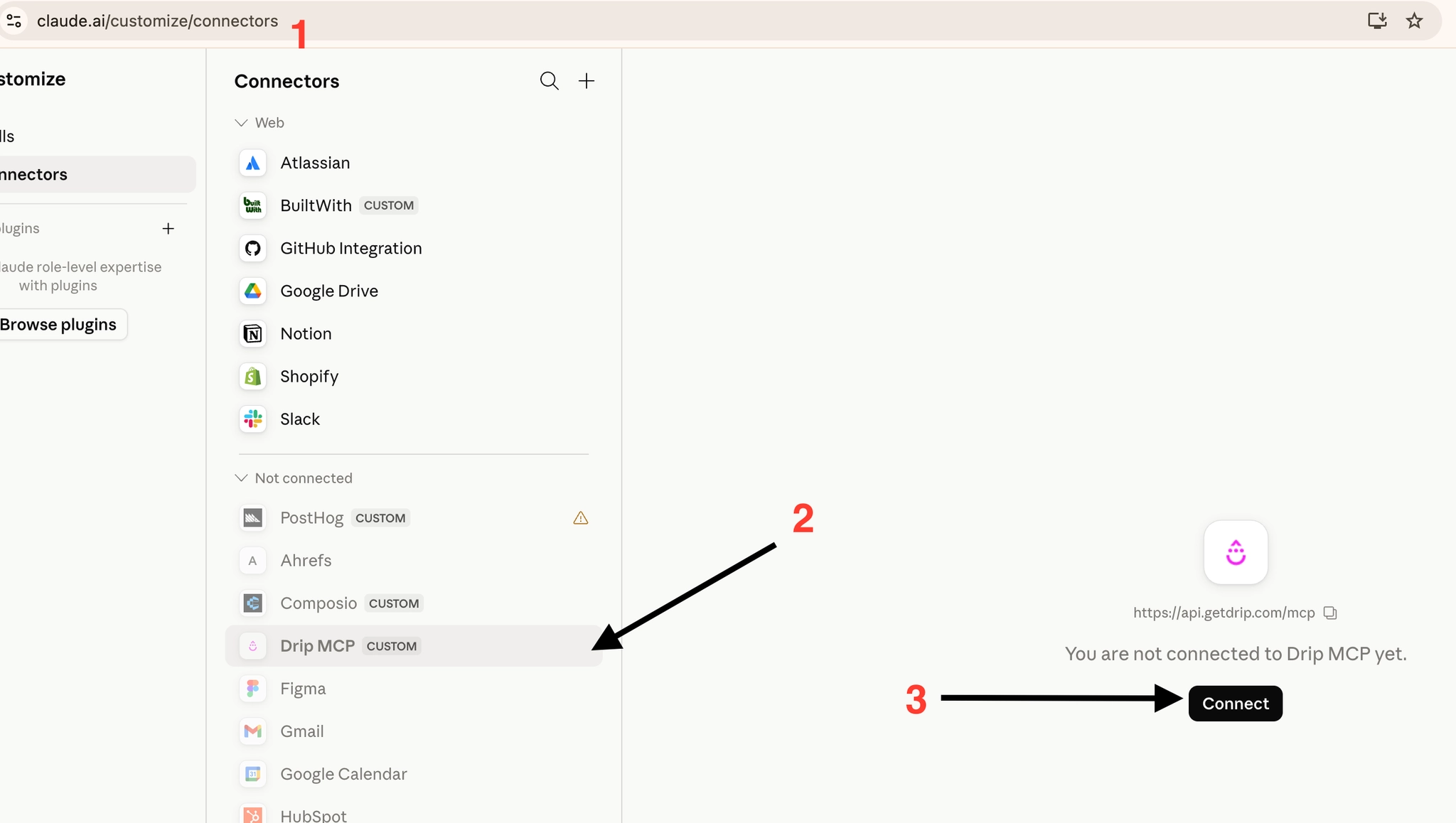
- On Claude’s left-side menu, navigate to Customize > Connectors
- If Drip MCP is not listed under “Not connected”, click the “+” button to add it.
- If Drip MCP is not listed under “Not connected”, click the “+” button to add it.
- Add https://api.getdrip.com/mcp as the connecting URL:
- When prompted, run through the Drip OAuth login and select the desired Drip Account or grant access to All Accounts from the dropdown menu, as well as set toggles for Read/Write permissions